


Birthday Video Maker 2026
4.6165.00 Reviews
App Specs
- Version
- 5.2.6
- Updated On
- License
- Free
- Downloads
- 10,000,000+
- Developer
- TarrySoft
- Categories
- Video Players & Editors
- Platform
- Android
Screenshots
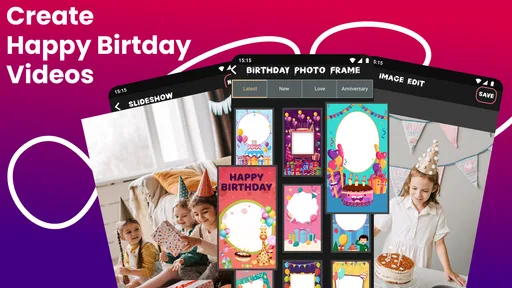
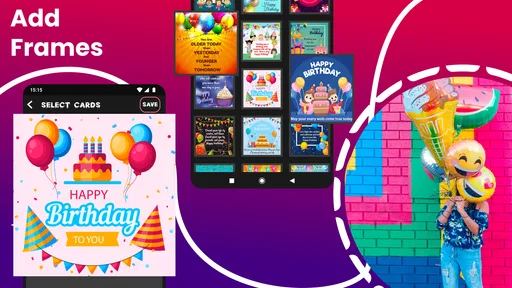
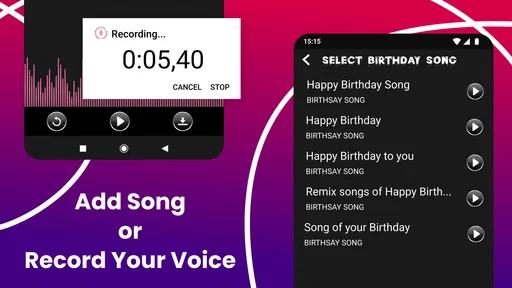
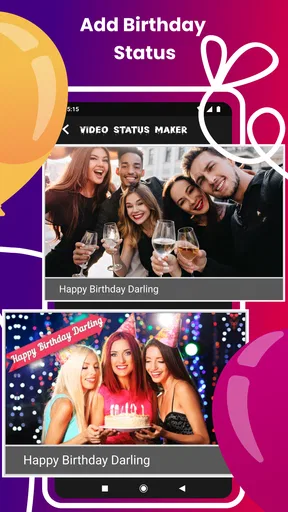
 Analysis by AppCompare
Birthday slideshows are often made in a hurry: a family gathering is coming up, photos are scattered across a phone, and someone wants a short video ready to share. I find that Birthday Video Maker 2026 suits that particular job best when the goal is a personal birthday greeting rather than a polished, multi-layer production. It is a free video-making app from TarrySoft, in the video players and editors category, and its focus is easy to understand: turn birthday photos and clips into a celebratory video.
The practical question is less whether an app can make a slideshow and more whether it helps you finish one without turning a small gift into an afternoon of editing. This one aims for an approachable process, but a few simple choices before you begin can make the result feel much more considered. I’d prepare the photos, decide where the finished video will be watched, and keep the message focused. Those steps matter more than adding every effect available.
Where a quick birthday edit can get stuck
The first snag is often the material, not the editor. A birthday video can feel uneven if it jumps between blurry pictures, repeated poses, and clips with very different lighting. Before opening the app, I’d pick a small sequence with a clear beginning, a few memorable moments, and a warm ending. That makes it easier to judge whether a transition or caption helps instead of using decoration to cover a loose selection.
Another common point of friction is making text readable. A long message can compete with a photo, especially when several people or details are already in the frame. I’d use brief captions, check them against both bright and dark images, and avoid placing important words near the edge. If a birthday greeting is meant for relatives who may watch on a phone, simple wording and good contrast are more useful than elaborate typography.
Music also needs a little thought. A track that seems right while editing may overpower a spoken clip or clash with the mood of the pictures. I’d decide whether the video is meant to feel funny, sentimental, or lively before choosing music, then listen through the assembled sequence rather than judging the song on its own. If the original audio matters, keep that in mind while arranging the clips so the soundtrack does not drown out the moment.
Setup checks that save time later
Although the app is presented as a straightforward editor, it still helps to check the basics before starting: make sure the pictures and clips you want are on the device, that you can identify them easily, and that the phone has enough room to work with a new video. Keeping a separate album for the occasion can reduce the chance of overlooking a favorite image or selecting several near-identical shots.
Birthday Video Maker is free to download and is rated for Everyone. It has a 4.6 average from around 93,000 ratings and has been installed over 10 million times. Its current version is 5.2.6, and it runs on Android 5.1 or later. There are in-app purchases, priced from $0.99 to $99.99 per item, so I’d check any purchase prompt carefully and decide whether the free experience already meets the need before paying for anything.
Worth Reading Before You Choose

EA SPORTS FC Mobile 26 Is a Bigger Football Game, but It Takes Time

Flipboard Shows What News Apps Must Do Beyond the Feed

Switching to Android Auto Means Rethinking Your Driving Routine

Google Calendar Makes a Crowded Week Easier to Manage

Ludo King Makes the Most of the Minutes Between Plans

Baby Panda World Brings Quick Play to Modern Phones, but Its Game Library Feels Busy
One useful habit is to make a rough pass before polishing. Put the photos in the order you want, add only the essential message, and preview the whole sequence. Then make a second pass for transitions and visual touches. This keeps the editing decisions tied to the story rather than encouraging a string of effects that distracts from the person being celebrated.
Making a birthday video that feels personal
For a realistic example, imagine preparing a surprise for a parent while coordinating with siblings. I’d collect a few pictures from different stages of life, ask each person for one short message, and arrange the material so the video builds toward the birthday greeting. The app’s slideshow-oriented approach is a natural fit for that kind of tribute: the value comes from choosing meaningful moments, not from trying to imitate a professional film.
Getting Started with Birthday Video Maker 2026
First things first, downloading and setting up the app is a breeze. Whether you're on Android or iOS, just head over to your respective app store, and you're good to go. The user interface is refreshingly intuitive, which means you won't need to spend hours trying to figure things out. Seriously, even if you’re not tech-savvy, you’ll find your way around in no time.
Before you begin editing, I’d also consider the destination. A video meant for a family group chat has different needs from one intended for a large screen at a party. For a small phone display, readable captions and a clear central subject matter most. For a gathering, previewing the result on the device you plan to use can reveal whether text feels too small or the pacing feels rushed.
Features That Stand Out
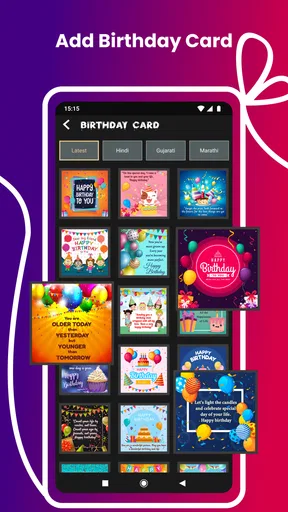
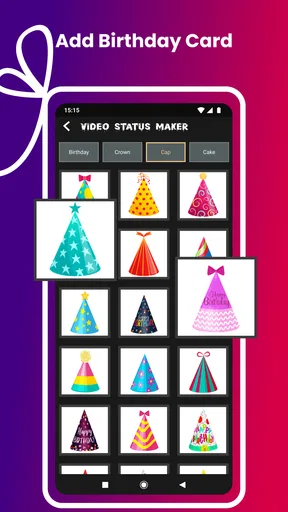
Once you dive into the app, you'll notice its wide array of features designed to make your videos pop. You can choose from a plethora of themes that cater to different age groups and styles. Whether you’re crafting a video for a toddler or planning a more sophisticated montage for an adult, Birthday Video Maker 2026 has got you covered.
What I absolutely love is the music library. It’s packed with a variety of tunes to suit any vibe you’re going for. Plus, you can even add your own tracks if you have something specific in mind. And let's not forget the editing tools. They’re pretty comprehensive, allowing you to trim, add filters, and even insert text with ease. It’s like having a mini editing suite right in your pocket!
The choice of theme is best treated as a starting point, not a substitute for editing judgement. If a template’s mood does not fit the person, I’d switch direction rather than forcing the photos to match it. A few consistent choices—similar caption styling, restrained transitions, and a soundtrack that supports the mood—usually make a more coherent result than changing the look from one moment to the next.
There is a trade-off between convenience and control. A birthday-focused editor can make it easier to produce something recognizable and festive than starting from a blank timeline in a general-purpose video editor. On the other hand, someone who wants precise control over timing, layered audio, or a complex sequence may prefer a fuller editor. I’d choose this app for a personal greeting or photo montage, not for a project where fine-grained editing is the main point.
Creating Your Masterpiece
Now, onto the fun part – creating your video! The app guides you through the process, starting with selecting photos and videos. You can upload from your gallery or even snap new ones directly within the app. Then, you get to play around with transitions. I’m talking about smooth fades, dramatic slides, and everything in between.
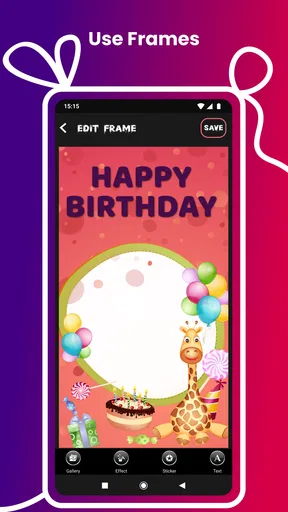
Adding personal messages is a breeze too. The text options are vast, offering different fonts and colors to match your theme. And if you’re feeling extra creative, the app lets you draw or doodle right onto the screen. Imagine adding little hearts or stars to your favorite photos – it’s those little touches that make the video truly yours.
When a draft feels cluttered, I’d remove something before adding another effect. A doodle can bring a playful picture to life, but repeated decorations may pull attention away from faces. Likewise, several transitions in a row can make a sentimental montage feel busy. A practical test is to watch the video once without stopping: if the message still comes through, the edit is probably doing its job.
If the app seems to stall during a project, I’d avoid immediately rebuilding everything. First, check that the selected media still opens normally in the phone’s gallery and close any unrelated apps that may be using the device. Reopen the project and preview a shorter section to see whether the issue is tied to one particular photo or clip. If a single item appears to be the problem, temporarily leave it out and continue with the rest, then try adding it back after the basic version is saved.
That workflow also helps when an edit feels difficult to recover. Save or export a simple version before experimenting with a different order, soundtrack, or set of decorations. Keeping an untouched copy of the original photos means you can start a fresh arrangement without losing the source material. I would not assume every problem is caused by the editor: a damaged media file, low device storage, or a temporary issue with the phone can affect many apps in the same way.
Sharing the Joy
Once you’re done, sharing your creation is as simple as a few taps. The app supports direct uploads to social media platforms like Instagram, Facebook, and WhatsApp. You can also save the video to your device and share it later. I’ve sent a couple of videos to family members, and the feedback has been heartwarming.
For sharing, saving the finished video to the device first is a useful fallback if a direct upload does not behave as expected. From there, you can try sending it through the service your family already uses. If a recipient cannot open or view it, check that the saved video plays locally before changing the edit; that simple check helps separate an export problem from a messaging or network problem.
I’d also be selective about where a birthday video goes. A family tribute may include children, private photographs, or messages meant for a small group. Sharing it directly with the intended people can be a better fit than posting it publicly. That is not a special editing feature, just a sensible part of deciding how to use personal photos and clips.
Who will enjoy it, and who may want another editor
I’d recommend this app to someone who wants a birthday slideshow without learning a complicated editing workflow: parents making a cheerful clip for a child, a friend putting together a quick greeting, or relatives creating a photo-led tribute. It is especially suitable when the pictures already tell the story and the editor’s job is to arrange them, add a little character, and make sharing convenient.
I’d skip it if your priority is detailed production control or a highly original video format. A conventional editor is a better fit when you need to shape a longer narrative carefully, coordinate multiple audio layers, or make precise adjustments across a timeline. Likewise, if you only want to send one photo and a sentence, making a video may add work without adding much meaning. The best choice depends on whether a slideshow genuinely suits the occasion.
Final Thoughts
Overall, Birthday Video Maker 2026 is a delightful tool for anyone wanting to make birthdays a little more special. Its combination of ease-of-use and powerful features makes it a standout choice in the crowded app market. Whether you're a seasoned video creator or a complete newbie, you'll find something to love about this app.
If you’re ready to start crafting unforgettable birthday memories, why not give Birthday Video Maker 2026 a try? It might just become your go-to app for all things celebratory!
My practical advice is to start with a small, well-chosen set of photos, make the message easy to read, and preview the finished piece before sharing it. That approach gives the app’s birthday themes and editing tools room to help without letting them overwhelm the personal part. For a quick, affectionate montage, it is an appealing option; for intricate editing, I’d reach for a more flexible video editor instead.
Pros
- Intuitive interface for easy video creation.
- Wide range of customizable templates.
- High-quality export options available.
- Includes a variety of music tracks.
- Supports multiple languages for global use.
Cons
- Limited free features; in-app purchases needed.
- Occasional ads can disrupt workflow.
- Requires a stable internet connection.
- Lacks advanced editing tools for pros.
- Some templates feel outdated.
FAQs for Birthday Video Maker 2026
What features does Birthday Video Maker 2026 offer?
Birthday Video Maker 2026 is packed with features that make creating personalized birthday videos a breeze. Users can choose from a variety of templates, add music from their library, include custom text, and incorporate special effects. The app also supports HD export, ensuring your videos look professional and vibrant.
Is Birthday Video Maker 2026 user-friendly for beginners?
Absolutely! Birthday Video Maker 2026 is designed with simplicity in mind. The intuitive interface guides users through each step, from selecting photos and videos to choosing music and effects. Even those new to video editing will find the app easy to navigate and will be able to create stunning videos in minutes.
Are there any costs associated with using Birthday Video Maker 2026?
Birthday Video Maker 2026 is free to download and use, with a selection of features available at no cost. However, there are in-app purchases for premium templates, special effects, and additional music tracks. These optional purchases enhance the user experience but are not necessary for creating great videos.
Can I share my videos directly from the app?
Yes, Birthday Video Maker 2026 allows for seamless sharing. Once your video is complete, you can share it directly to social media platforms like Facebook, Instagram, and WhatsApp. There's also an option to save the video to your device, making it easy to send via email or messaging apps.
What devices are compatible with Birthday Video Maker 2026?
Birthday Video Maker 2026 is compatible with both Android and iOS devices. It requires Android 5.0 or higher and iOS 11.0 or later. The app is optimized for both phones and tablets, ensuring a smooth editing experience across different devices.


